
Run a Conformance Test
Before You Start
Make sure:
- The vessel is registered
- Transceiver information is accurate,
- Billing information is complete
Please ensure all details are correct. Once payment is processed it will not be possible to change any of the conformance data. The test and certificate is non-refundable.
1. After the vessel has been registered you may begin testing via Vessels (Step 2) or via Conformance Test (Step 3) under the LRIT dropdown menu on the left-hand side
2. Vessels
- On the Registered Vessels dashboard look for the vessel either by the Search box, Sort By filter or scrolling down until you find the vessel
- Once you have the right vessel click on Run Test under Actions, then proceed to Step 4
3. Conformance Tests
- On the LRIT Conformance Test Dashboard click on +NEW CONFORMANCE TEST button
- Select the vessel to be tested
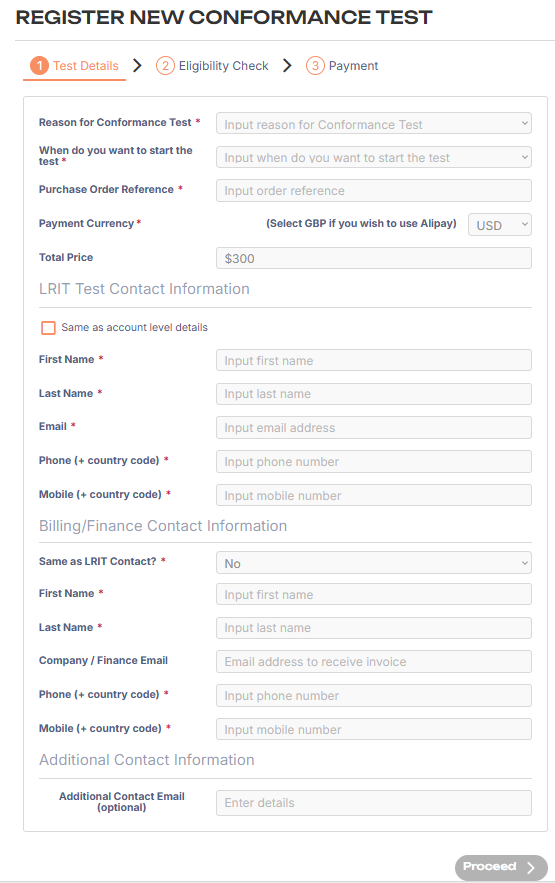
4. Under Test Details fill out all fields
- Reason for Conformance Test: select an option from the drop-down
- When do you want to start the test: select one of the options
i. I’ll start the test myself: Once payment is cleared you may begin the test at your convenience
ii. Start test immediately: The test will begin automatically after payment has been cleared.
iii. Schedule date: Set a future date and time for the test to start automatically once the payment is confirmed
- Purchase Order Reference: Input a Purchase order number/reference, if you do not have one, input the vessel name/IMO
- LRIT Test Contact Information: Tick for ‘Same as account level details’ or enter the Name, Email, and Contact numbers of those who should receive test updates via email
- Additional Contact Email (optional): additional email for test updates
- Billing/Finance Contact information: Select ‘Yes’ for Same as LRIT Contact? or enter the Name, Company/Finance Email, and Contact numbers for the billing/finance contact
- After filling out all the fields, click the Eligibility Check button on the bottom right. If the button is greyed out, information is missing or in the wrong format
5. On the Eligibility Check page click on the Screen Vessel button. Please note that Pole Star performs a sanctions screening check on all vessels as part of its compliance responsibilities.
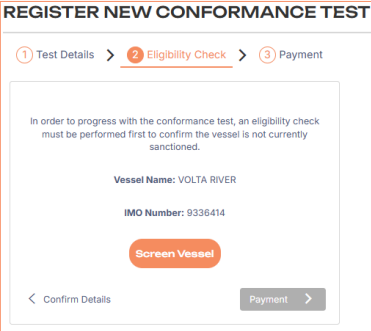
6. The vessel’s IMO will be screened for Sanctions, when the status changes from ‘Screening in progress…’ to ‘Eligibility check passed’ click on Payment
7. Select a payment method and click Proceed. You will not need to select a payment method if you have credit terms.
- After the payment method has been selected you will need to read through the pop up Notice, tick the Read & Accepted checkbox and click Proceed.
The vessel will then appear on the LRIT Conformance Test Dashboard with one of the following payment status
i. Pending = waiting for payment to be cleared. To provide proof of payment please contact our Finance team at finance@polestarglobal.com
ii. Invoiced = Invoiced as per the agreed credit terms (for those with credit terms)
iii. Paid = cleared payment for proforma invoice and credit card payment methods