
Manage Your OnDemand Account
Learn how to update your personal information, change your password, and manage users.
Team / User Management
The user that you first registered for your On Demand account is set up with account and user administration rights (Super User rights).
- You administer your account from the Team menu item on the left-hand navigation bar.
- Click on Team and you’ll see a list of all users in that account as well as two buttons + INVITE and EDIT DETAILS
- Clicking + Invite allows you to add in additional users to your account.
- All new team users require their own email address - one that has not already been associated with an existing On Demand account. The user email entered will be the email used to log on into the platform.
After inviting a user.
- Click + Invite.
- Enter the user’s email.
- Assign role and product access.
- Send the invite.
Users receive an email from noreply.ondemand@polestarglobal.com
Invitation status changes from Pending to Accepted after registration.
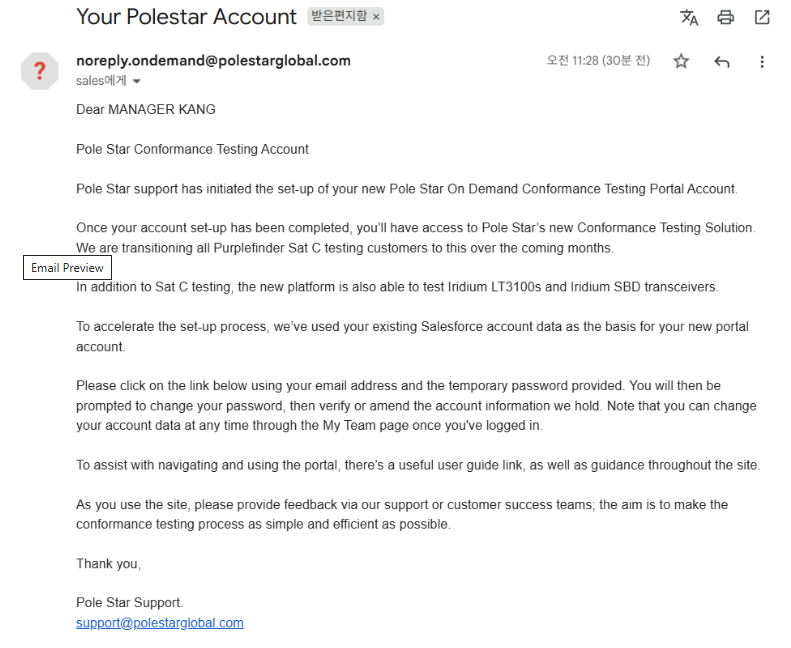
If still not received, it may have been held back by the company’s email system. If necessary, you can also delete their pending invite and try again. Once the user has registered, their invitation status will change from Pending to Accepted so you can easily see the status of their invitation.
Updating Account (Team) Details
- You administer your account from the Team menu item on the left-hand navigation bar.
- Click Edit Details on top-left, to make changes as necessary, scroll to the bottom of the page, click Save. This will change your On Demand and Platform account data.